SubCopy Configuration
TeraCopy Location
After you complete the TeraCopy installation, launch the SubCopy application. When SubCopy starts, the application looks for the TeraCopy application executable in the default installation location and automatically configures the application to use it.
If you installed TeraCopy in a different location, the application automatically opens the application Settings dialog so you can select the location for the TeraCopy executable.
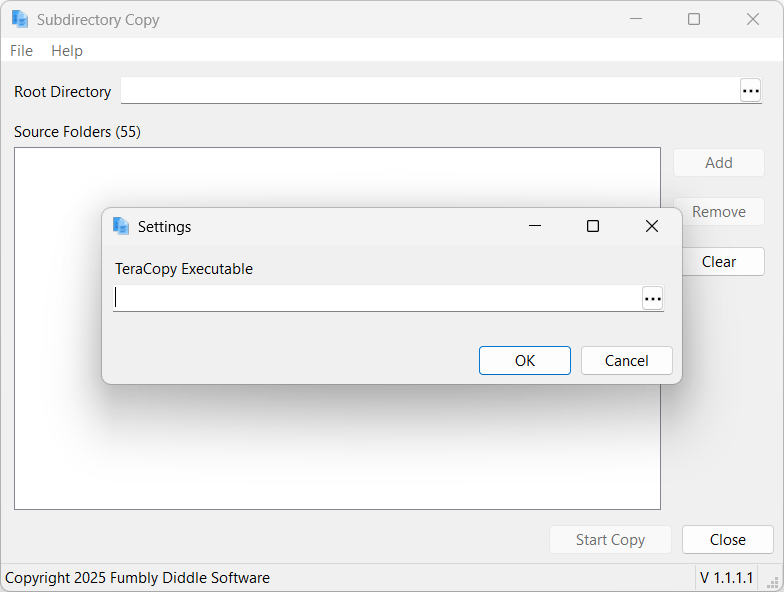
Click the button at the end of the input field to select the TeraCopy executable by navigating the system's directory structure.
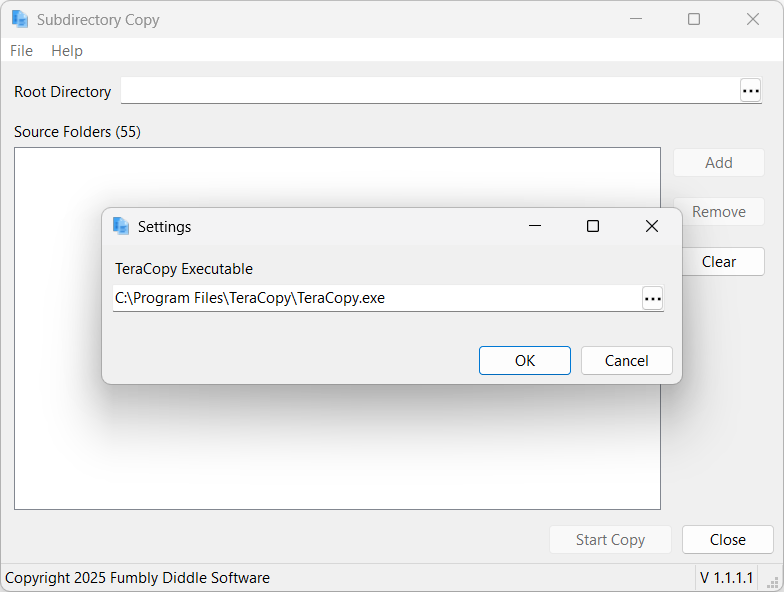
Note: To access the TeraCopy executable setting again, in the SubCopy application open the File menu and select Settings.
Directory Settings
In the application's main screen you configure the copy settings for the particular Project.
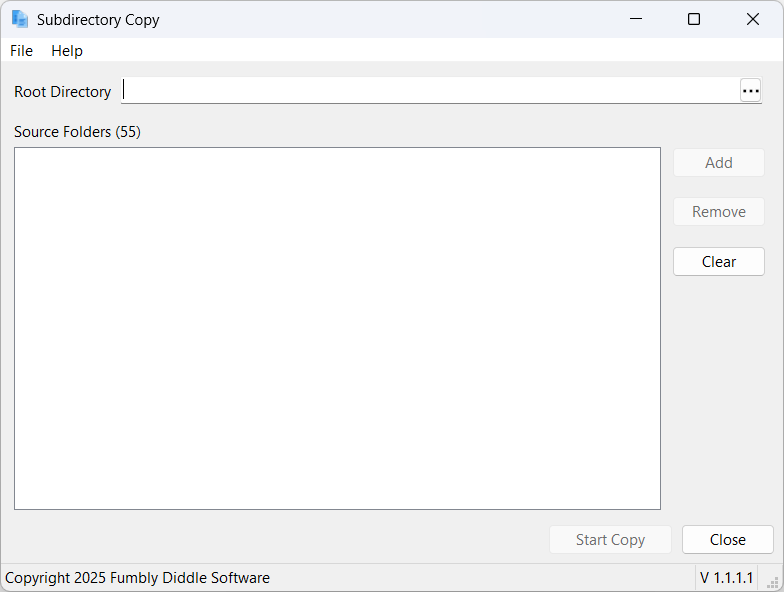
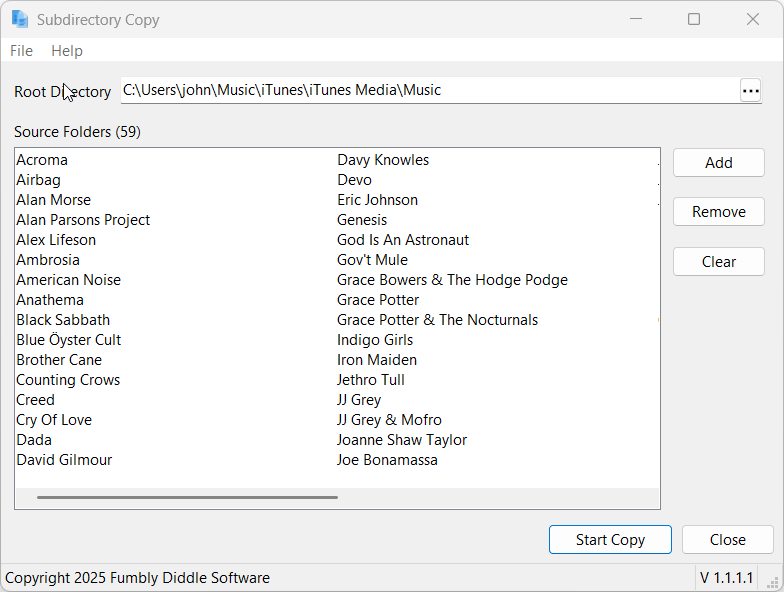
In the Root Directory section of the the application's main screen, click the button at the end of the input field to browse for the root directory where all of the folders you want copied are located.

With that in place, you add one or more source folders underneath the selected root directory.
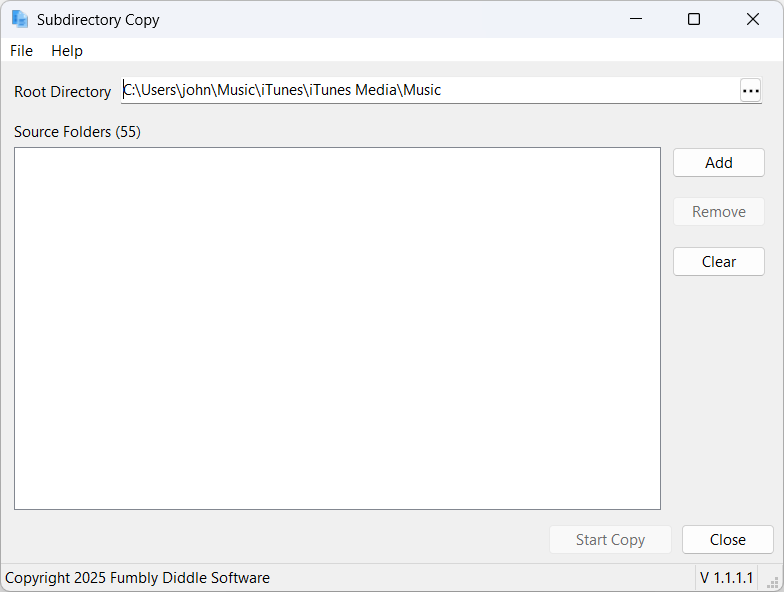
In the Source Directories section, click the Add button.
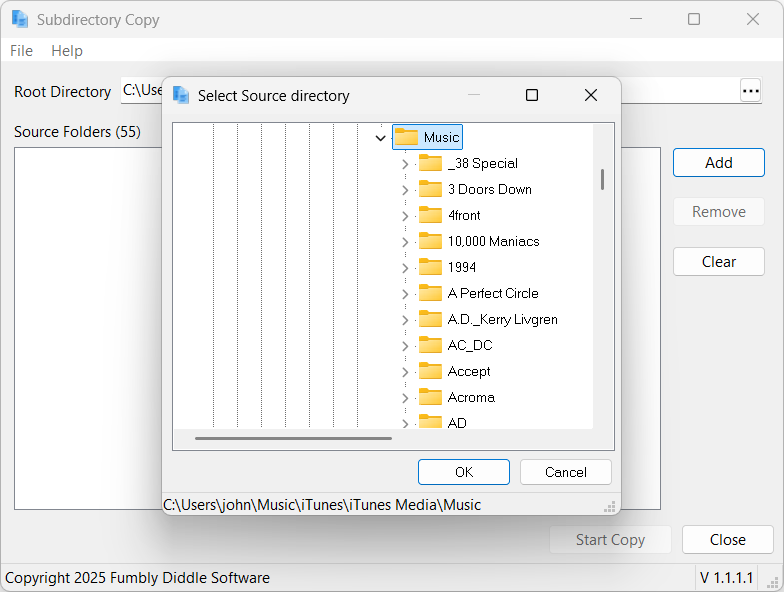
Note: You can also drag source folders onto the application using Windows File Explorer.
The following image shows the application's configuration with Root and Source directories selected.
Managing Projects
The application stores the copy configuration in external project files, files with a scpy extension.
Once you have the application's copy configuration set, you must save the project. From the File menu, select Save. The application prompts you to save the project in the system's My Documents folder.
Like other Windows applications, Subdirectory Copy allows you to:
- Save an existing Project under a new name using the Save As menu item.
- Open an existing Project using the Open menu item.
- Create a new Project using the New menu item.
The application's File menu offers an option called Recent which displays the list of the previous 5 projects opened in the application.