Using SubCopy
Once you've configured the application with:
- TeraCopy executable location
- Root directory
- One or more source subdirectories
You can start copying the contents of the source subdirectories to an external drive.
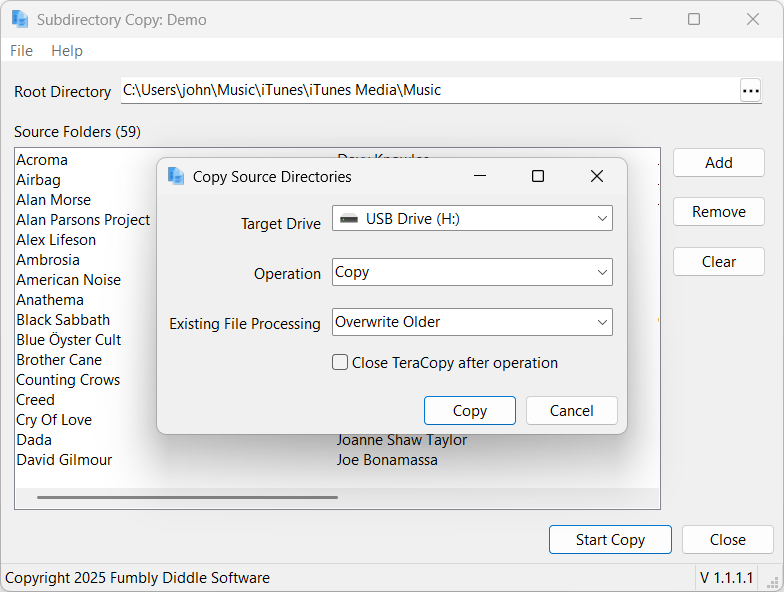
In the main application window's toolbar, click the Start COpy button on the toolbar at the bottom of the application's main screen. The application opens the Copy Source Directories window where you select options for the copy process as shown in the following figure:
Copy Options
Make selections in this screen based on how you want files copied (described in the following sections), then click the Copy button to start the process.
Target Drive
Select one of the available target drives connected to the system. The application only lists removable drives for you to select.
Operation
Perform one of the following operations on the source subdirectory list
| Option | Description |
|---|---|
| Copy | Copy the source subdirectories to the target drive using the processing options listed in the following section. |
| Move | Move the subdirectories to the target drive using the processing options listed in the following section. |
| Test | Test the integrity of the source subdirectory files. |
Processing Options
During a copy or move operation, deal with conflicts using one of the following options:
| Option | Description |
|---|---|
| Skip All | Skip all existing files (regardless of file date). |
| Overwrite All | Overwrite all existing files. |
| Overwrite Older | (default) Overwrite existing files, but only if the source is newer. |
| Overwrite if Different Size | Overwrite existing files, but only if the sizes are different. |
| Rename Copied | Rename conflicting source files; if the file already exists, rename the source file to a new name leaving the original. |
| Rename Destination | Renaming conflicting target files; if the file already exists, rename the target file to a new name before copying in the new source file. |
Close TeraCopy
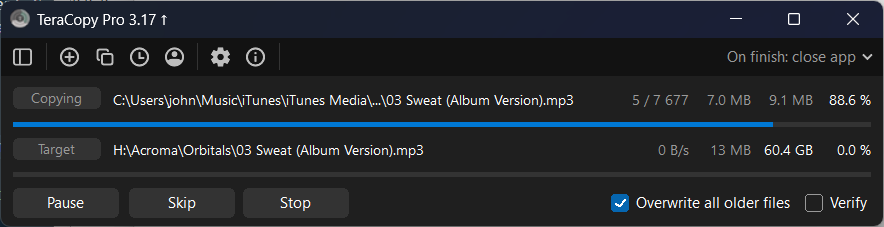
Check the Close TeraCopy after operation checkbox if you want the TeraCopy to automatically close itself when its done processing. Leave the checkbox unchecked if you want to view the process results in TeraCopy.
Copy Process
Before the application launches TeraCopy to start processing the subdirectories, it validates all of the configuration and processing options before starting the copy. If there are any issues with the process, warnings or error messages will appear on the screen. The following image shows the results for a successful validation.
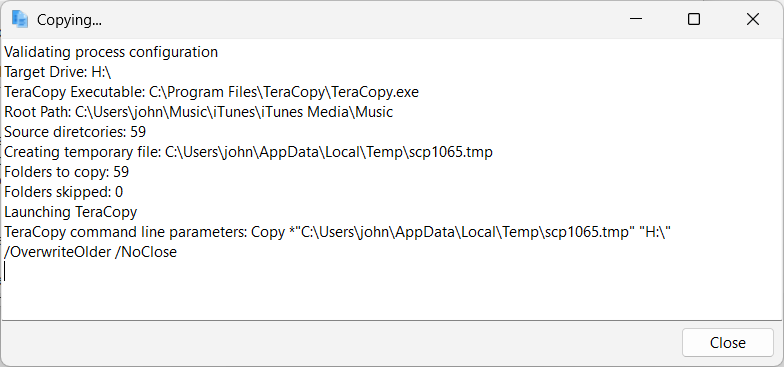
Note: The application drives the TeraCopy application through a text file listing all of the subdirectories being processed. The application creates this file in the user's temporary folder using a temporary file name (Automatically generated by Windows).
After the application successfully validates all of the processing options, it launches TeraCopy and TeraCopy handles everything from there.