TeraCopy Setup
Installation
To use SubCopy, you must have a copy of the free Teracopy utility installed on your Windows system. If you do not have TeraCopy installed, navigate to Code Sector Downloads then download and install the latest version of the application.
Configuration
Out of the box, TeraCopy comes configured to verify the available space on the target device before starting the copy process. Unfortunately, when updating the files on the target device, TeraCopy may report "More space is required" and abort the copy process. This is because TeraCopy checks the target drive for free space equal or grater than the size of the files being copied.
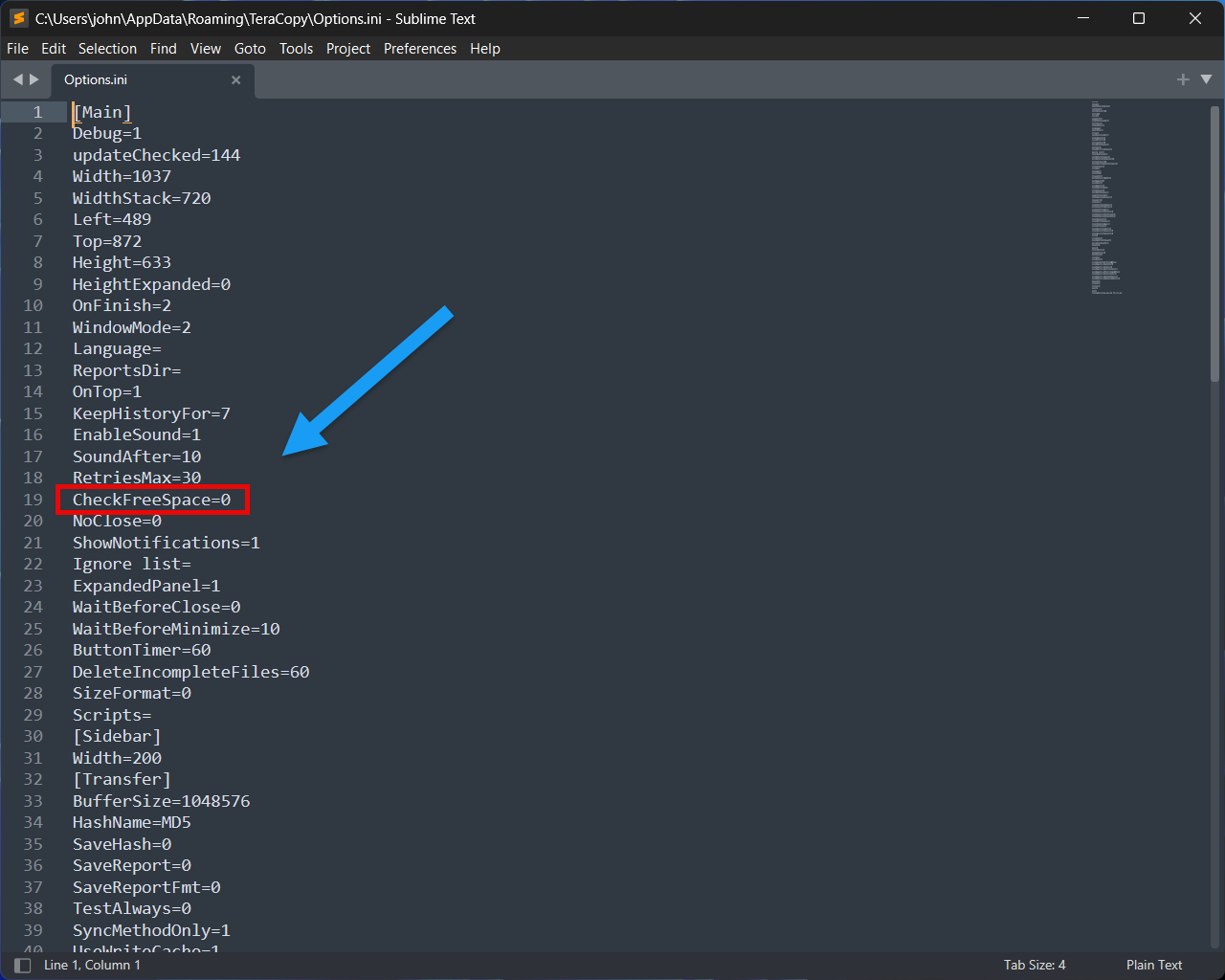
When overwriting only older files (a MSFCopy and TeraCopy feature), it's possible that there will be enough space on the target drive, but TeraCopy doesn't know it. To get around this potential blocker, you must modify the TeraCopy configuration to disable the application's CheckFreeSpace option.
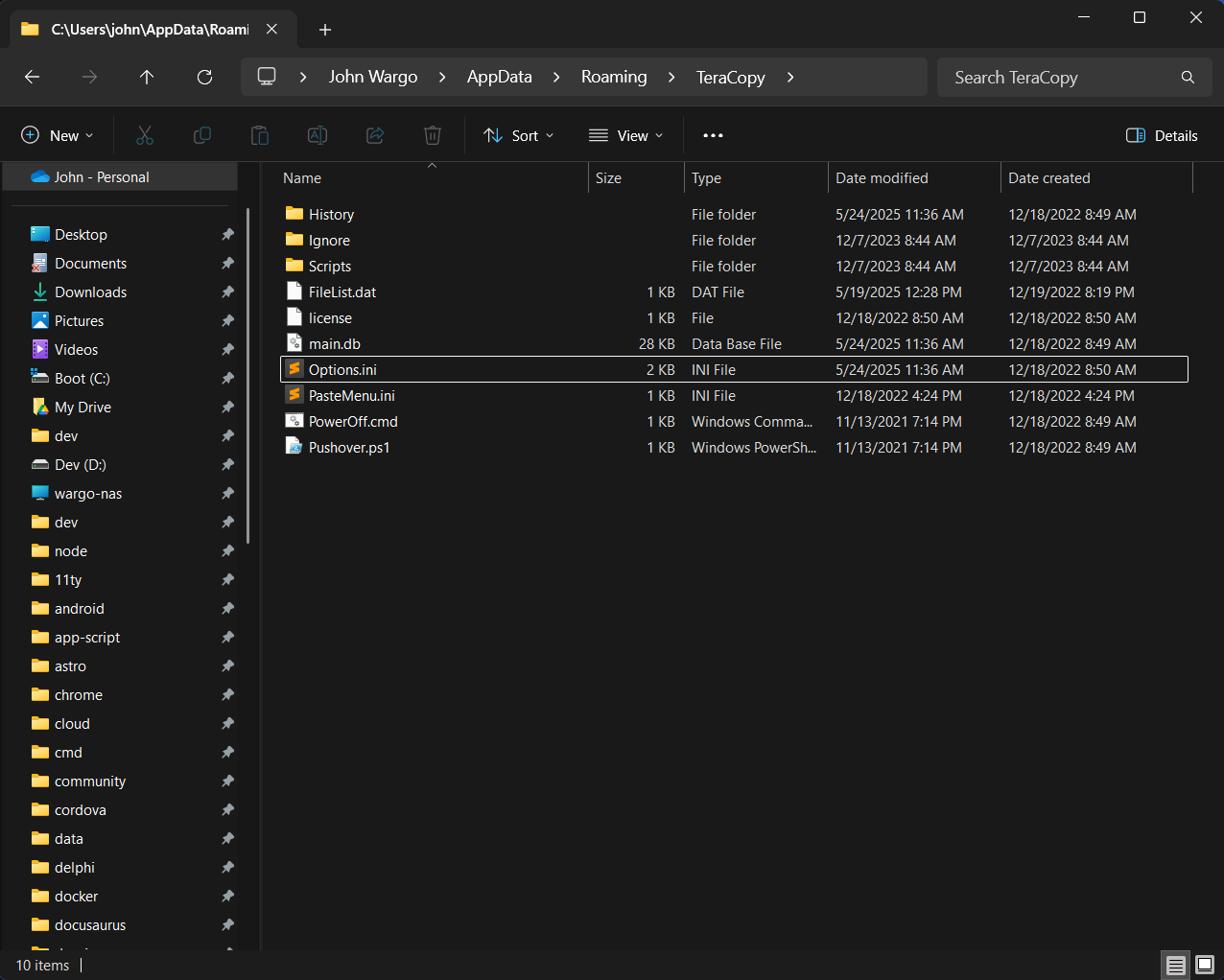
- Navigate to the TeraCopy configuration folder:
- Windows 10/11: C:\Users[YourUsername]\AppData\Roaming\TeraCopy.
- Windows 7/Vista: Same location as above.
- Windows XP: C:\Documents and Settings[YourUsername]\Application Data\TeraCopy.
- Open the
Options.inifile in a text editor. - Find the line
CheckFreeSpace=1and change it toCheckFreeSpace=0. - Save the file and restart TeraCopy.
Here's an example from my system:
And here's the configuration file with the required change highlighted.